Syncing Your GitHub Copilot Customizations Across Machines
If you use GitHub Copilot Chat in VS Code and also the GitHub Copilot CLI, you’ve probably hit this problem: custom agents, instructions, and skills all live under %USERPROFILE%.copilot\, and they stay local to whatever machine you built them on. Set up a second laptop, and you start from zero — no agents, no instructions, no skills.
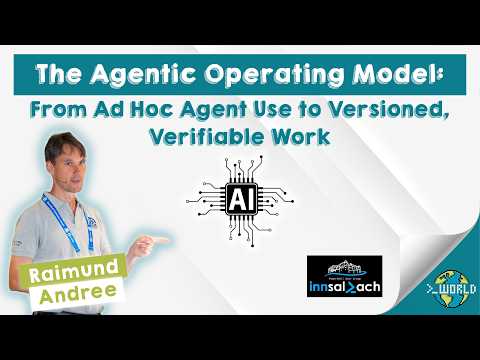
CopilotAtelier by Raimund Andrée is a PowerShell module that solves exactly this. It keeps a canonical copy of your Copilot customizations in one synced location and wires the well-known discovery folders to it with NTFS junctions.
The Core Idea
Both the VS Code Copilot Chat extension and the GitHub Copilot CLI look for custom content in the same ~/.copilot/* folders, but they don’t share storage across machines on their own. CopilotAtelier’s approach:
Store the canonical files in ~/OneDrive/CopilotAtelier/ (preferred, so OneDrive handles the cross-machine sync) or ~/CopilotAtelier/ as a fallback if OneDrive isn’t installed.
Create NTFS junctions (symlinks on macOS/Linux) from ~/.copilot/{agents,instructions,skills,prompts,hooks} pointing at that canonical folder.
Write an agent, instruction, skill, or hook once, and both VS Code and the Copilot CLI see it immediately — on every machine that syncs the OneDrive folder.
Notably, for agents, instructions, and skills, no chat.*FilesLocations settings need to be written at all, because both clients already auto-discover the well-known ~/.copilot paths. Prompts are the one exception — VS Code’s Copilot Chat only reads prompts from %APPDATA%\Code\User\prompts or paths explicitly listed in chat.promptFilesLocations, so the setup script adds a single entry for that.
What You Get
The repository organizes customizations into five folders, each mapping to a distinct Copilot Chat feature:
| Folder | File Type | Purpose |
|---|---|---|
| Agents | *.agent.md | Custom AI personas with their own tools and instructions |
| Instructions | *.instructions.md | Coding standards that auto-apply via a glob or get attached manually |
| Skills | <name>/SKILL.md | On-demand capabilities exposed as slash commands |
| Prompts | *.prompt.md | Reusable templates for repeatable tasks |
| Hooks | JSON config + scripts | Guardrails enforced at fixed points in the agent loop |
The Skills library alone is extensive — dozens of skills covering PowerShell/DSC workflows (Pester patterns, Sampler builds, DSC troubleshooting), Windows infrastructure (WinRM diagnostics, MECM/SCCM deployment via DSC), document conversion (DOCX/XLSX/PDF to Markdown without external tools), Outlook automation via COM, and even meta-skills like citation-integrity and devils-advocate-review for keeping AI-generated output honest.
Installation
You install the module from the PowerShell Gallery:
1
Install-PSResource -Name CopilotAtelier -Prerelease
After installation, run the setup script to create the canonical folder and the junctions:
1
Install-CopilotAtelier
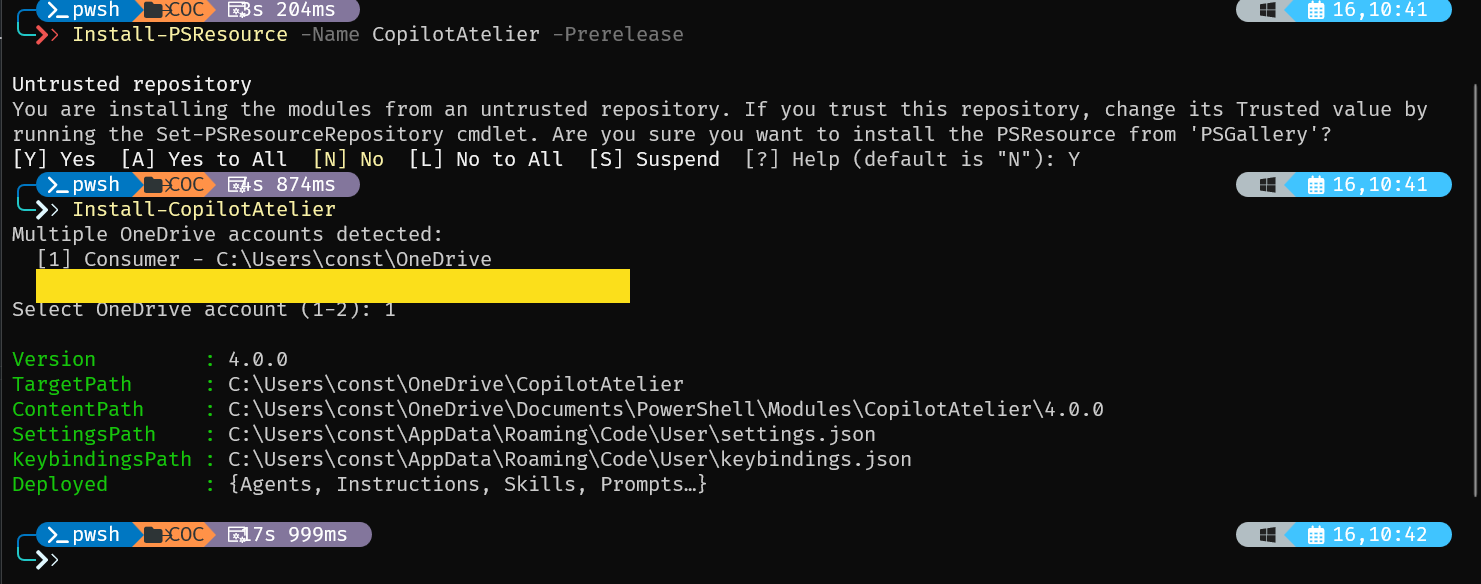
That’s the entire setup — no elevation required. Restart VS Code and the agents, skills, and prompts show up under the Chat agent dropdown and / menu.
Keeping all the tools up to date is easy — just run the update script:
1
Update-CopilotAtelier
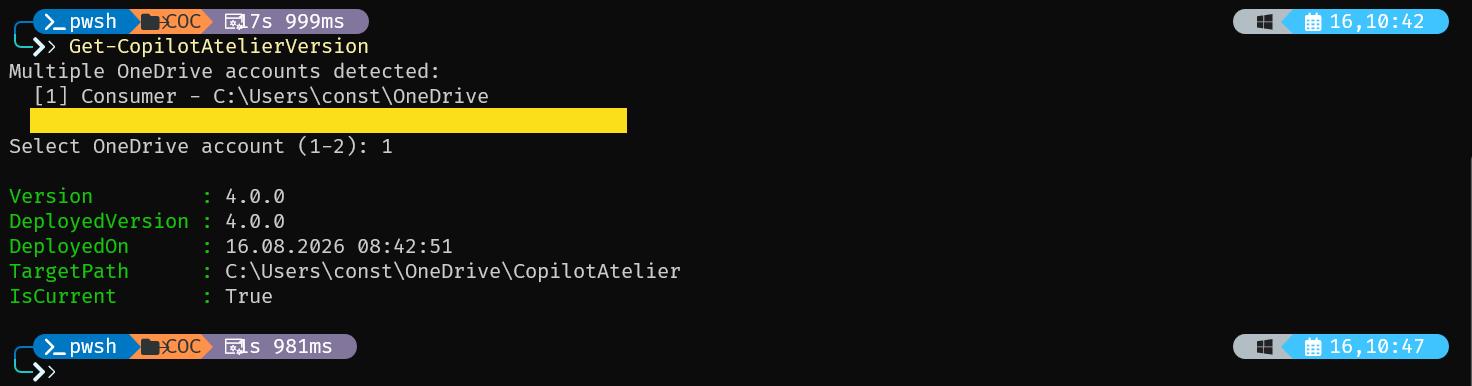
If you want to check the current installed version, run:
1
Get-CopilotAtelierVersion
Syncing Across Machines
For a second machine, note that syncing the OneDrive folder isn’t enough by itself — you still need to run Install-CopilotAtelier there once to create the local ~/.copilot junctions and patch VS Code’s settings.
There’s also a third path: the repo publishes plugin.json, so it installs directly as an agent plugin via Chat: Install Plugin From Source in VS Code, pointed at the repo URL. That gives you agents and skills (exposed as /copilot-atelier:
Why It Matters
The interesting part isn’t the junction trick itself — it’s treating Copilot customization as something worth versioning, syncing, and shipping as a proper module with update tooling, rather than a folder you manually copy between machines and forget to keep current. If you’re maintaining a non-trivial set of custom agents, instructions, or skills for GitHub Copilot and work across more than one machine, CopilotAtelier is worth a look.
If you want to watch the latest UserGroup meeting where Raimund Andrée demos CopilotAtelier and more, check out the recording on YouTube: